FIS® Digital Data Exchange

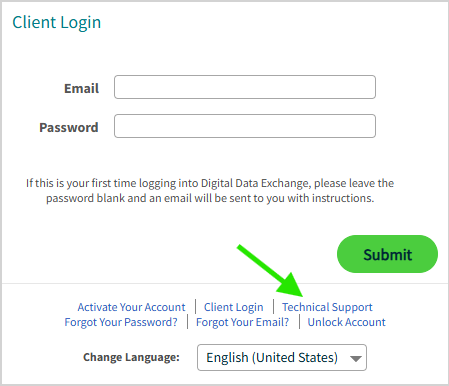

Digital Data Exchange supports Google Chrome, Mozilla Firefox, Apple Safari, and Microsoft Edge.
Note: Your browser must be set to allow pop-ups from the Digital Data Exchange website.
The most secured protocol Transport Layer Security (TLS) v 1.2 has been implemented. This protocol provides a secured data exchange between client application (browser) and web application server or web application server and another non-browser component.
Compatible Operating System:
Compatible Internet Browser:
For other versions of internet browsers, use the following link to change the browser settings to support TLS 1.2:
https://www.ssl.com/how-to/turn-off-ssl-3-0-and-tls-1-0-in-your-browser
For New Users, follow these steps to activate your account
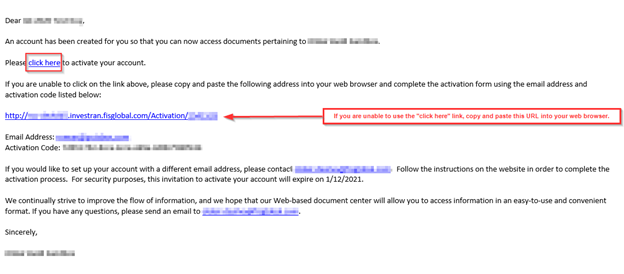
After receiving an invitation email from the Data Room Administrator, click the click here link in the invitation email. The Activate Your Account page appears where your email address and activation code are pre-populated.
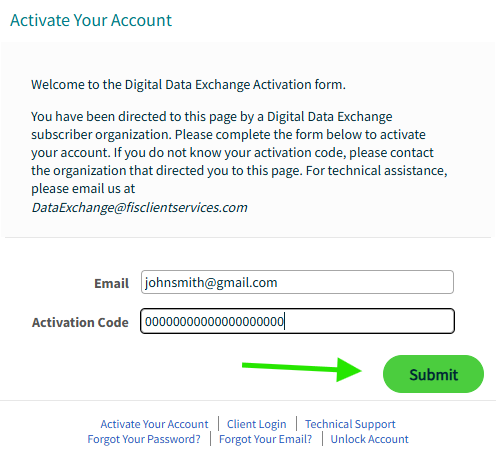
At the Activate Your Account page, click the Submit button to continue to the next page if the Email and Activation Code fields are correct.
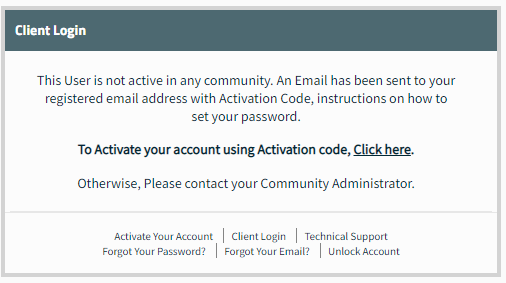
Provided the information entered was correct, you should see the confirmation below.
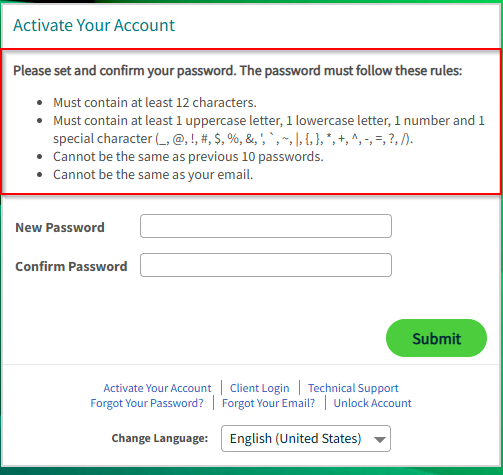
Check the password requirements, enter your password in the New Password and the Confirm Password fields for your Data Exchange and then, click Submit to continue into the next window. Make sure the passwords that you enter in both fields match.
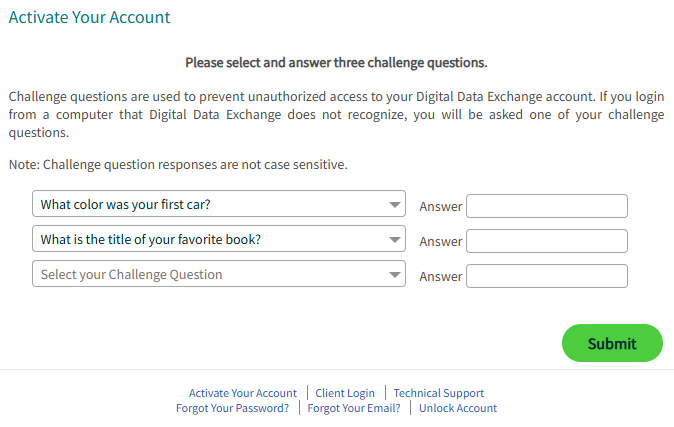
Setup and answer 3 challenge questions then, click Submit to continue to the next window.
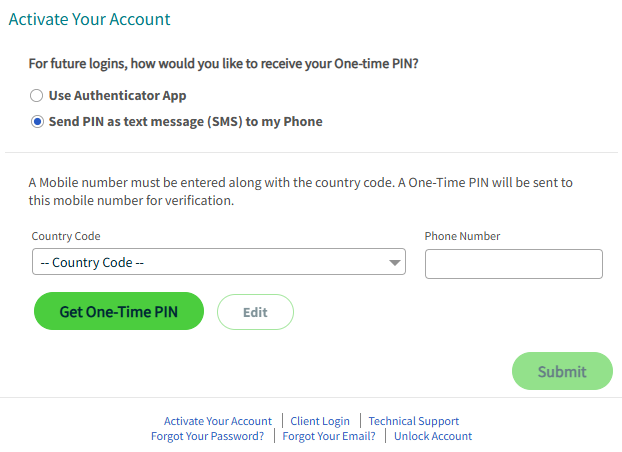
Choose your One-time PIN delivery method from the following methods and click Submit to Continue to the next page.
Use Authenticator app
Send PIN as text message (SMS) to my phone
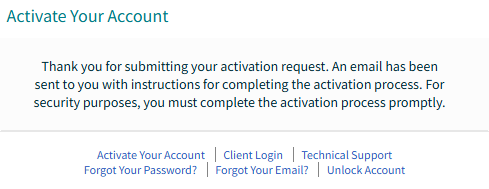
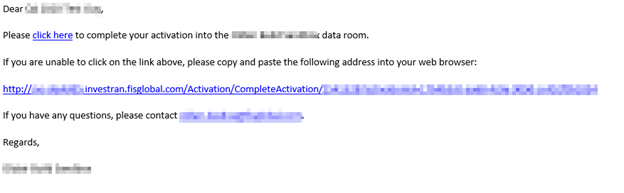
An email will be sent to you in order to complete the activation process.
When you receive the email, it will look similar to the example below. Click the click here link to complete the activation or paste the URL into your browser.
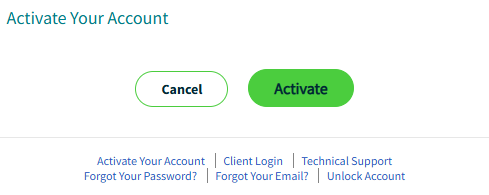
Click the Activate button to complete the activation or the Cancel button to not proceed further.
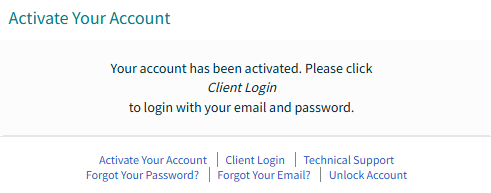
A confirmation will display confirming the activation was completed. You will then be redirected to the Client Login page.
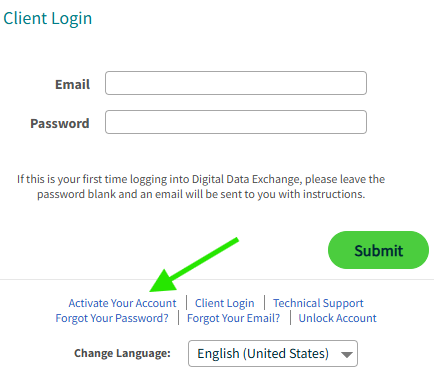
Note: If the link in the invitation email does not work, do the following:
Copy the link in the invitation email and paste it into your browser.
Click the Activate Your Account link and follow the instructions after manually entering your Email and Activation Code from the invitation email.
For Existing Users, follow these steps to activate your account
After receiving an invitation email from the Data Room Administrator, click the click here link in the invitation email. The Activate Your Account page appears where your email address and activation code are pre-populated.
At the Activate Your Account page, click the Submit button to continue to the next page if the Email and Activation Code fields are correct.
An email will be sent to you in order to complete the activation process.
When you receive the email, it will look similar to the example below. Click the click here link to complete the activation or paste the URL into your browser.
Click the Activate button to complete the activation or the Cancel button to not proceed further.
A confirmation will display confirming the activation was completed. You will then be redirected to the Client Login page.
Note: If the link in the invitation email does not work, do the following:
Copy the link in the invitation email and paste it into your browser.
Click the Activate Your Account link and follow the instructions after manually entering your Email and Activation Code from the invitation email.
The Data Room Administrator will create accounts for authorized users. Once your account has been created, you will receive an invitation email with an activation code.
If you attempt to access a URL in a data room and you have been sent an activation code for the data room in the past and the activation code has not expired, you are able to request that the activation code be resent to you by choosing the Click Here link.
The activation code is unique and can only be used once.
Yes - the expiration date for your activation code should be detailed in the invitation email. If the expiration date has passed and you haven't activated your account, please contact the Data Room Administrator directly or contact Digital Data Exchange Client Services. A new invitation email will be sent to you with a new expiration date.
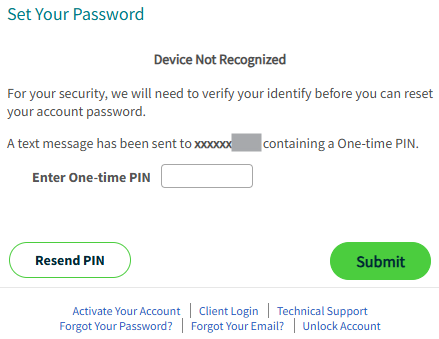
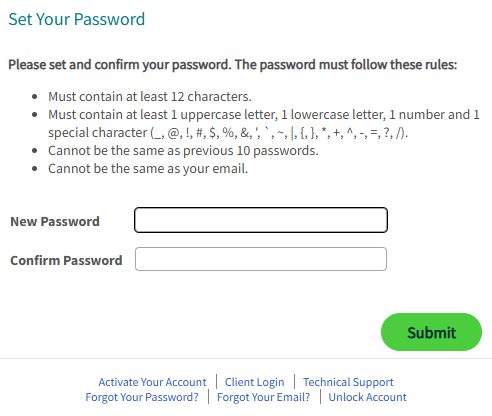
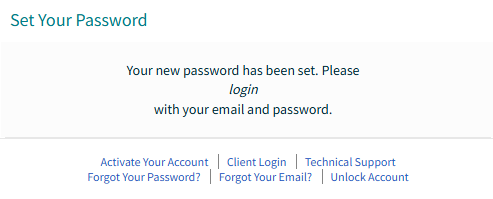
Check your spam or junk email folder for an email from Digital Data Exchange Client Services.
If you did not receive the email, please contact Digital Data Exchange Client Services.
For security reasons, your password must comply with the following requirements:
Password can only be updated once within a 24 hour time period unless reset by a Data Exchange Administrator.
No, Digital Data Exchange passwords do not expire.
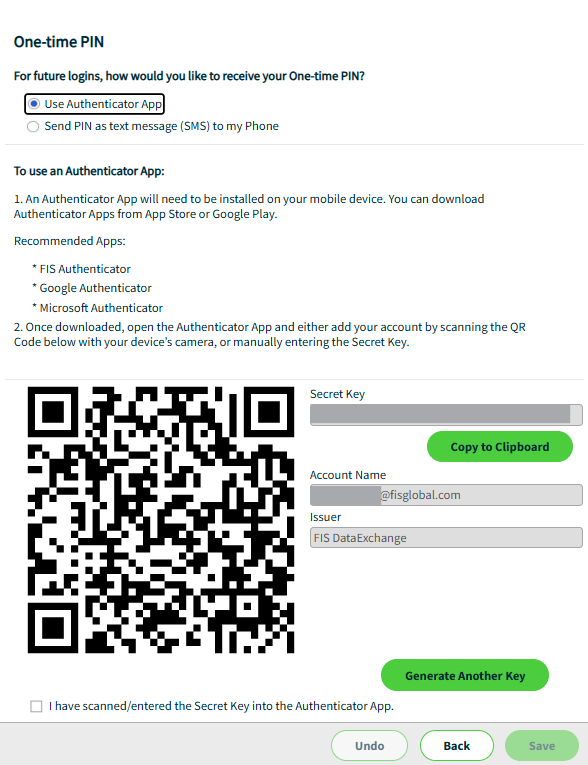
You can change the One-time PIN delivery method if your preference is to use an Authenticator Application or SMS instead of email.
To change your One-time PIN delivery from email to an Authenticator application or SMS, do the following:
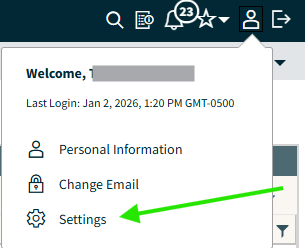
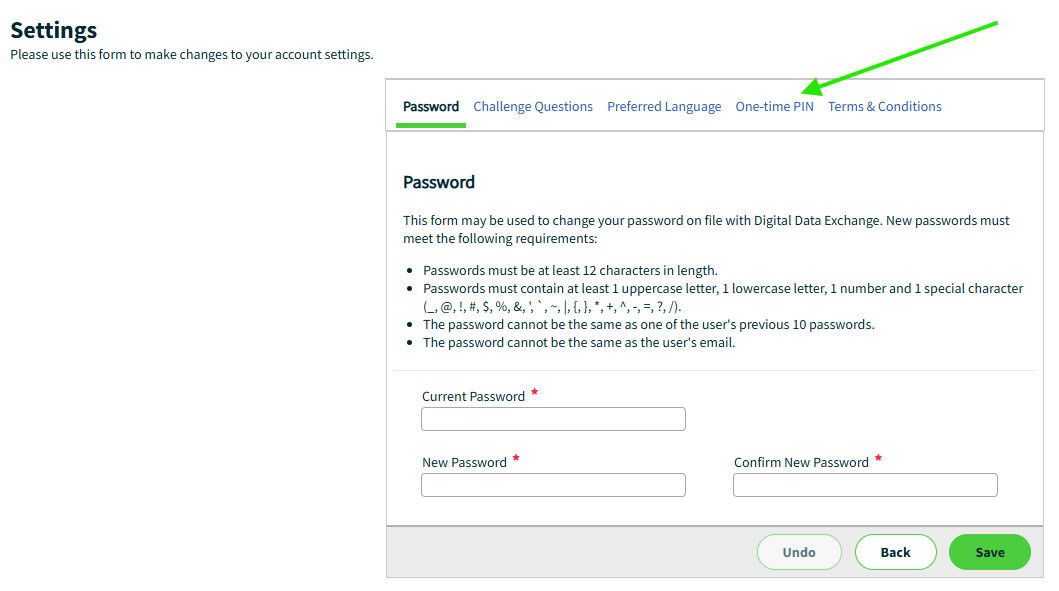
Note: If a Digital Data Exchange user account is being shared and the OTP delivery method is an Authenticator application, the Secret Key and/or QR code should be shared amongst the users so that they can configure the Authenticator application on their mobile device or computer.
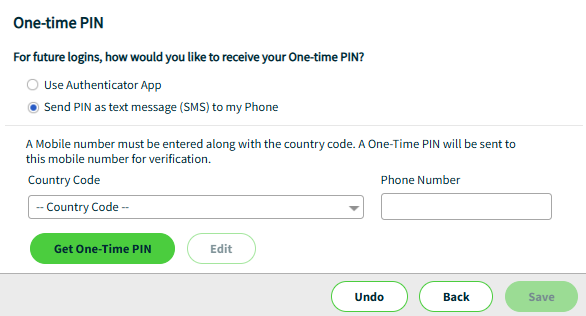
Note: If you want to reset your One-time PIN delivery method, please contact FIS support:
To unlock your account, do the following:
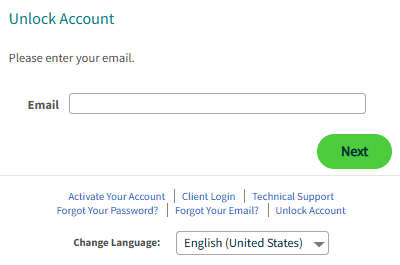
On the Client Login page, click the Unlock Account link.
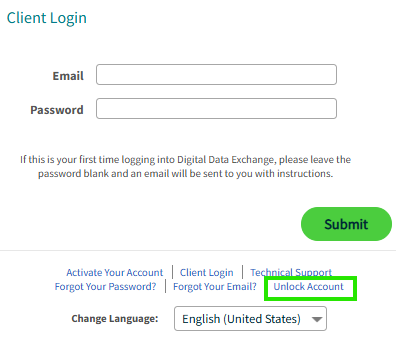
In the Email field, enter your email address/user ID and click the Next button.
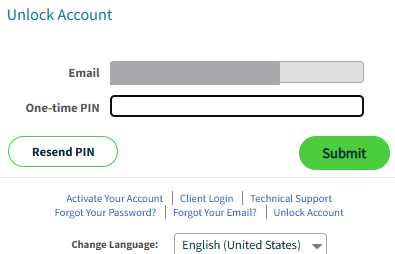
In the One-time PIN field, enter the One-time PIN that you received or generated based on your One-time PIN delivery settings and click the Submit button.
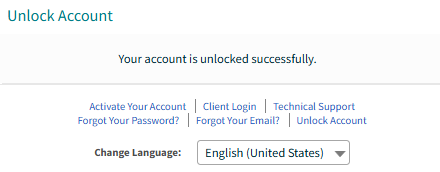
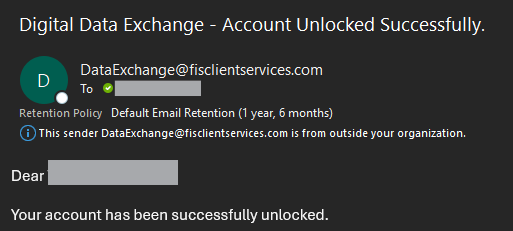
Your user account will be unlocked, and you will be notified in the DDX user interface and through an email message.
Cookies are small text files that are placed on your device by websites that you visit. They are widely used in order to make websites work, or work more efficiently, as well as to provide information to the owners of the site.
Cookies do not pose a major threat to security if used correctly for legitimate and reasonable purposes. Digital Data Exchange only uses cookies to remember users on certain machines and improve functionality. For security reasons, Digital Data Exchange will never save password information in cookies.
When logging in to Digital Data Exchange the user has an option to choose "Remember Me" , which places a cookie on their computer so that they are not required to enter a One-time PIN for future logins. The “Remember Me” cookie is valid for a period of 30 days.
For more information, click on Cookies Info link at the bottom of the Client Login page.
This document applies to FIS Digital Data Exchange 2025 Q1. This document was last updated on 2/11/2025
Learn more about how FIS can help you run, grow, protect and connect your business with unparalleled confidence.

Find best-of-breed financial products for your institution or business.

Stay ahead with expert insights into emerging payment trends.


